


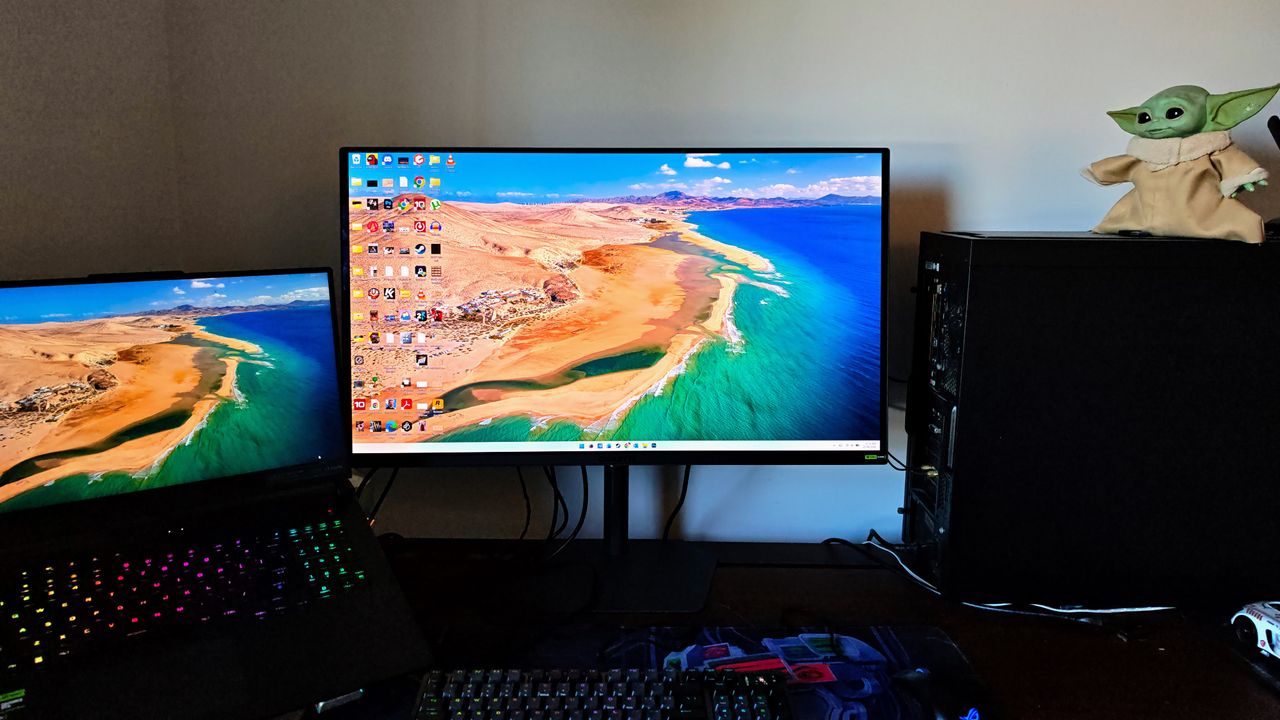
Gigabyte MO32U24: Two-Minute Review
Gigabyte’s gaming monitors have been hit and miss lately, but I had high hopes for the 32-inch, 4K, 240Hz MO32U24, which uses a 4th-generation QD-OLED panel and has a new, HDR-boosting feature called HyperNits.
Is this the one?
Like Gigabyte’s other non-Aorus-branded gaming monitors, the MO32U24 has a sober design that eschews RGB and geometric flourishes for a basic-looking stem and stand. That’s no bad thing, as many buyers will want a monitor that suits gaming, multimedia and work.
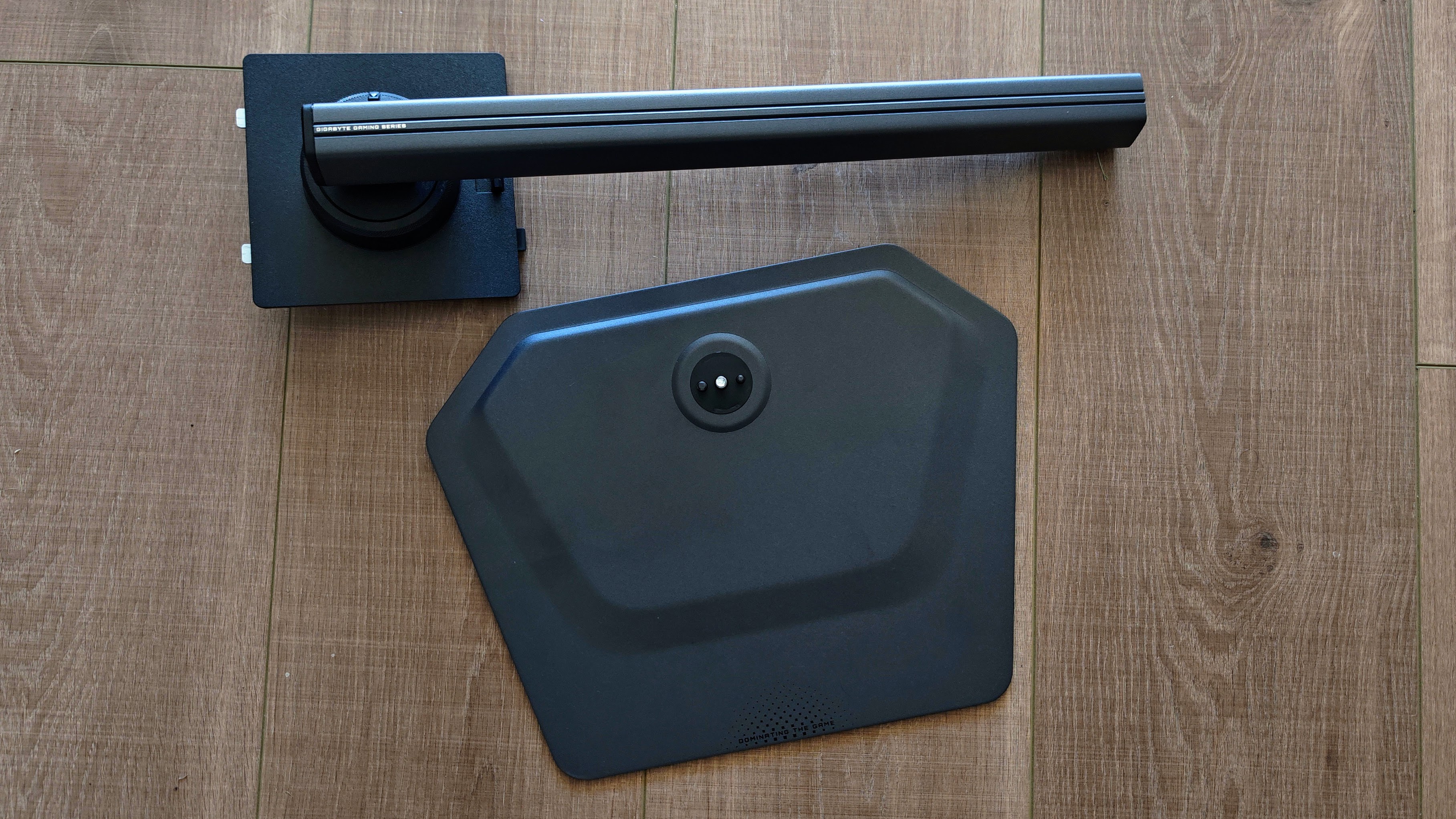
It’s easy to assemble (one clip and a thumbscrew), there’s a generous amount of adjustment in every direction and the small-footprint stand will suit competitive gamers who sit right up close to the screen.
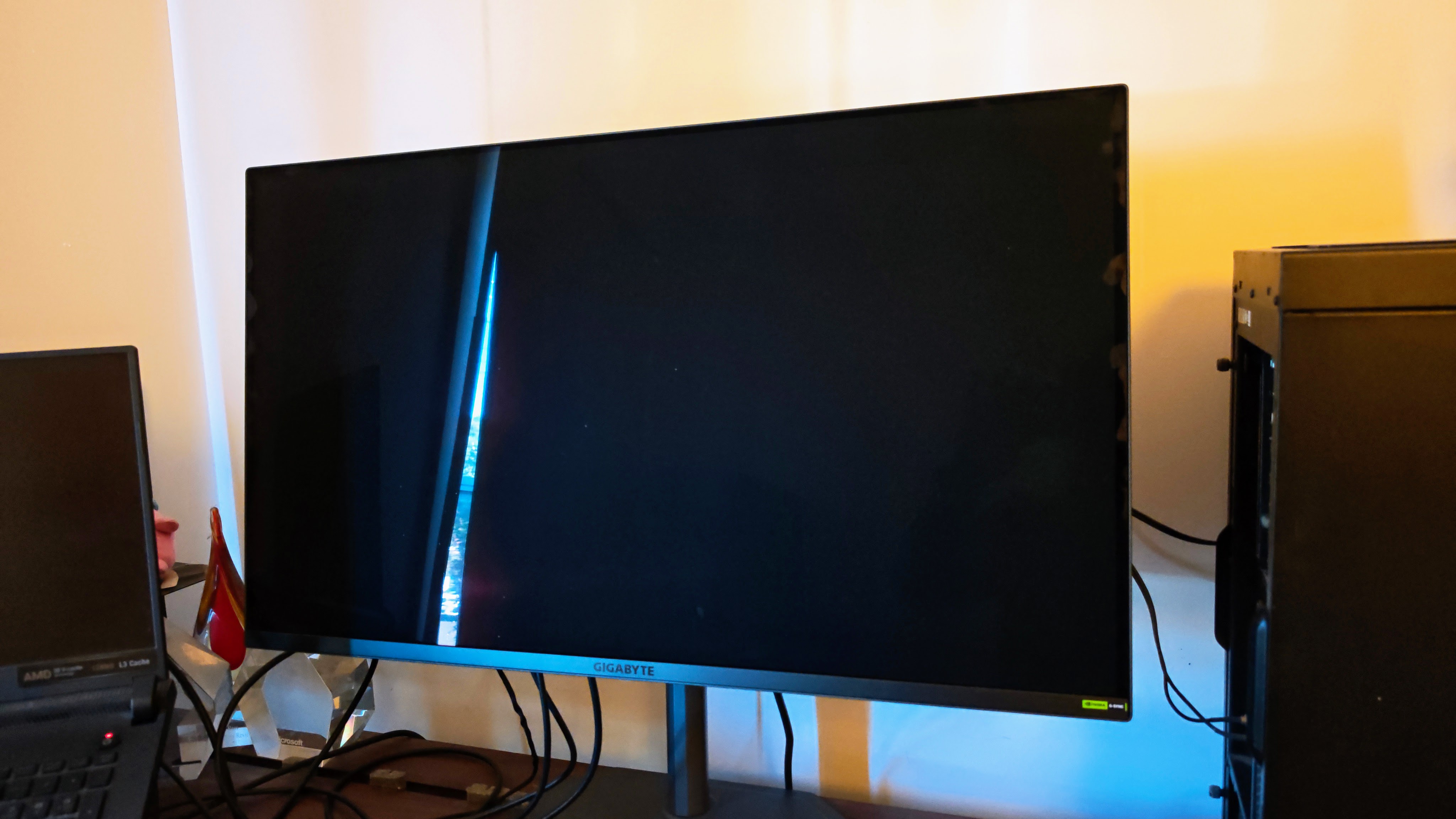
QD-OLED screens banished spidery text a generation ago and this fourth-gen version is no different. Even fine fonts look sharp and the UHD resolution means you can comfortably work with four windows or large spreadsheets all day without straining your eyes.
The screen also uses Gigabyte’s ObsidianShield coating, which ‘boosts true-black performance’ and improves scratch resistance. It has a semi-gloss finish and does an impressive job of reducing reflections.
However, I was particularly interested to see how the HyperNits brightness enhancement affected the 1,000-nit HDR performance. Gigabyte says it “intelligently enhances overall brightness… while preserving highlight details.” In reality, it makes the MO32U24’s excellent HDR a bit better.
While some details still get lost in large, bright areas, an impressive amount of detail simultaneously remains visible in highlights and shadows: bright lights (fire, lightning, candles, windows and torches) shine piercingly out of true-black backgrounds without blowing out.
This noticeably improves multimedia immersion (especially in open-world games). I also liked that I could leave it activated when working without going blind.
Meanwhile, colors are bright and saturated and transitions are smooth and noise-free. The 240Hz refresh rate and the rapid 0.03ms pixel response banish blurriness around rapidly moving objects and only god-tier pro-FPS players might complain. G-Sync prevents image tearing.
Gigabyte’s OSD is intuitive, responsive and all the usual presets and gaming features are easily accessed via a joystick button. Gigabyte’s Game Assist features include an on-screen timer and refresh rate display, on-screen crosshairs, a sniper-zoom box, green-screen night vision and flash dimming. Some are useful, but others feel gimmicky.
Potentially of more interest to FPS players is the customizable Tactical Switch button, which drops the display area to 24 or 27 inches, sets the resolution to 1440p, Full HD or HD and/or changes the aspect ratio to 4:3 or 5:4.
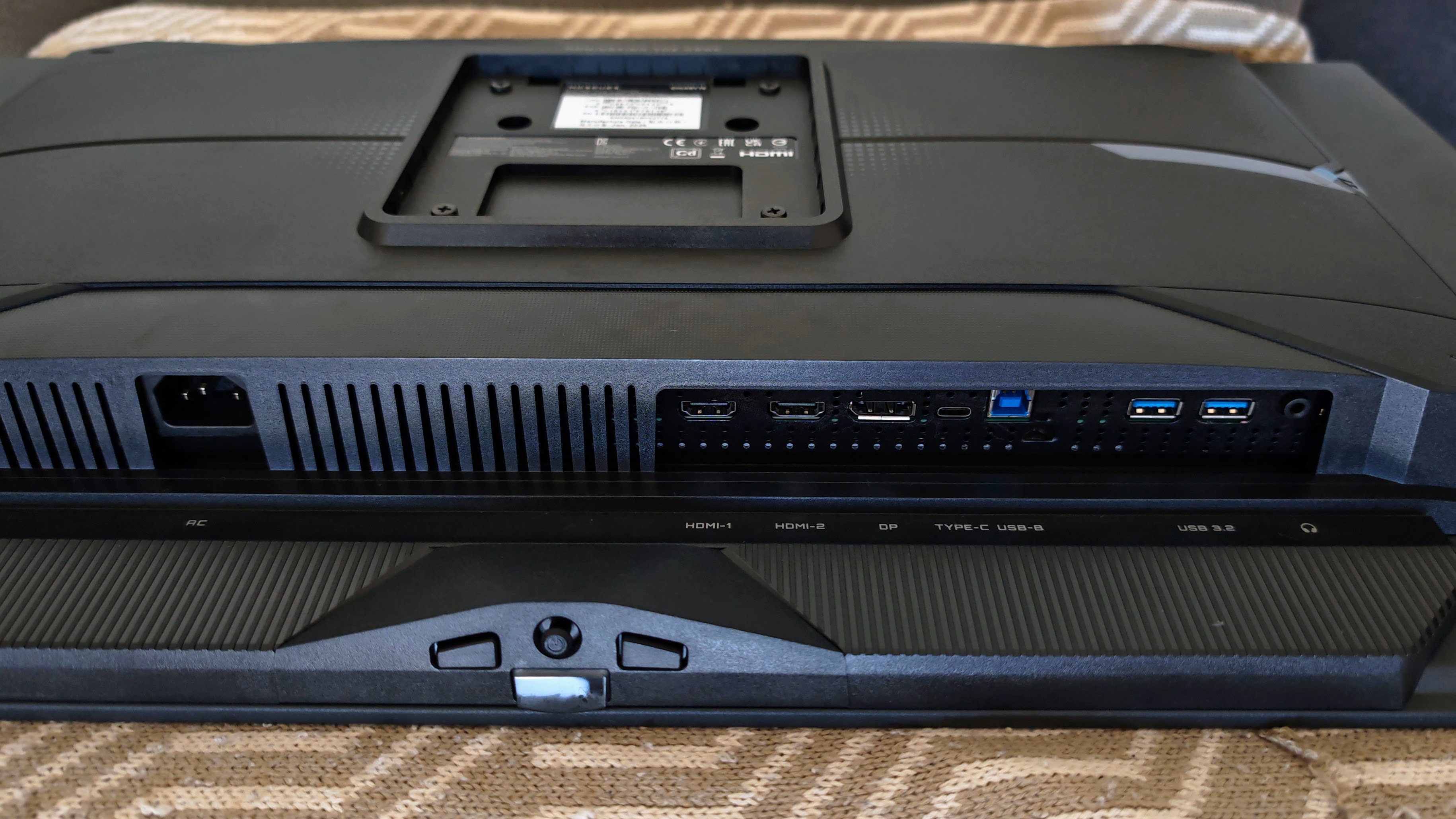
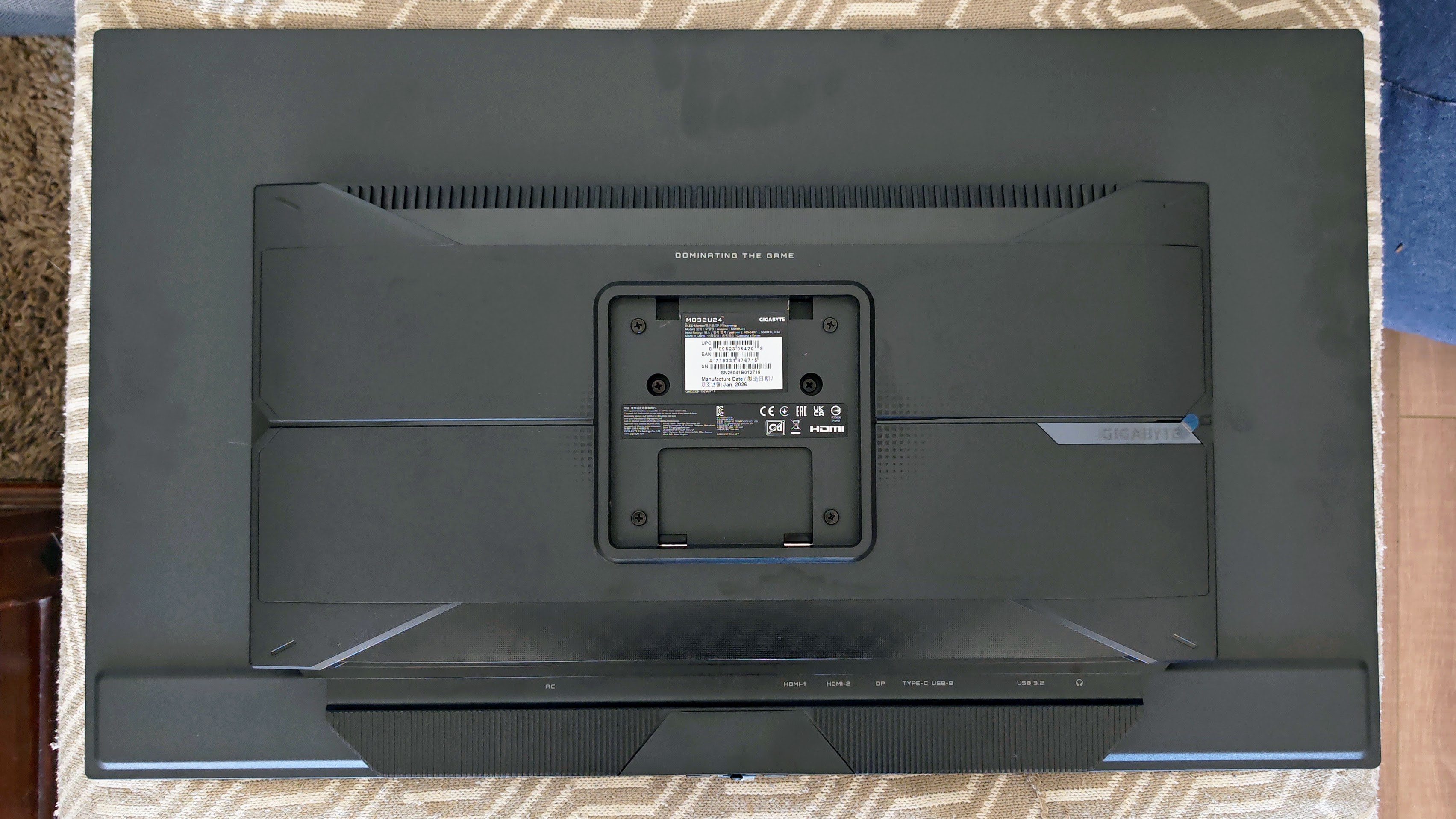
Beyond that, there are considerable automated OLED care options that don’t get in your way, a full set of ports (including a two-port USB hub) and two 5-watt speakers, which provide useful audio for day-to-day multimedia use (but have very little bass).
In more recent years, Asus has dominated in this space, but no longer. It has a few quirks, but the Gigabyte MO32U24 has the chops where it matters.
Gigabyte MO32U24: Price & availability
- How much does it cost? $1,000 / £800 / AU$1,499
- When is it available? The Gigabyte MO32U24 is out now
- Where can you get it? It’s available in the US, UK, Australia and other regions
The Gigabyte MO32U24 is available now in most regions. It’s a premium model, so it’s not cheap. Furthermore, the global price spread is quite wide and it sits in a crowded segment where prices for rivals and previous-gen models are changing frequently (and significantly) in sales.
This means the value proposition is hard to pin down. Nonetheless, you do get a lot of gaming monitor for your money and it’s currently one of the very best on the market.
- Value: 4 / 5
Gigabyte MO32U24: Specs
|
Screen size |
31.5-inch |
|
Aspect ratio |
16:9 |
|
Resolution |
3840 x 2160 (UHD) |
|
Brightness |
300 cd/m² typical SDR at 100% APL; 1000 cd/m² typical HDR at 3% APL |
|
Refresh rate |
240Hz |
|
Response time |
0.03ms GTG |
|
Viewing angle |
178°(H)/178°(V) |
|
Contrast ratio |
1.5M:1 |
|
Color coverage |
99% DCI-P3 |
|
Inputs |
2x full-bandwidth HDMI 2.1, 1x DisplayPort 1.4, 1x USB-C with DisplayPort Alt Mode, upstream and up to 18W power delivery, 2x USB 3.2 downstream, 1x USB 3.2 upstream, 1x earphone jack |
|
Dimensions |
71.9 x 61.0 x 24.0cm with stand (28.3 x 24.0 x 9.4in); 71.8 x 41.8 x 6.5cm without stand (28.3 x 16.5 x 2.6in) |
|
Weight |
7.95kg with stand (17.5lb); 6.00kg without stand (13.2lb) |
Gigabyte MO32U24: Design
- Utilitarian design with small base footprint
- Responsive and intuitive OSD controls
- Generous amount of tilt, swivel, pivot and height adjustment
Some gaming monitors have over-designed, spiky stands that take up more space than is necessary on your desk in order to make a statement — often with RGB lighting to hammer home the point.
The Gigabyte MO32U24 is more sober (unlike siblings from its Aorus sub-brand) in that its no-nonsense stem, base and bezel are relatively plain-Jane in their appearance, but are arguably better for it.
The stem easily clips onto the screen and the small-footprint base attaches to it via a single thumbscrew. You’re left with a solid stand that doesn’t wobble unless you shake the whole desk.
The whole monitor doesn’t look flashy, which will suit those who want to use it for office work in an office environment. However, esports players can still sit right up close to it with their keyboards.
I’m not quite sure what happened to the Gigabyte Control Center app. It used to be very good at adjusting all your monitor settings from the Windows desktop.
The latest version is barely functional, so you need to access settings using the joystick button at the base. Mercifully, it’s intuitive and responsive and you can set up multiple (one- or two-click) shortcuts to your most commonly used features.
To its left is the off switch. To the right is the ‘Tactical Switch’ which can instantly change the display size, resolution and aspect ratio to suit esports players or activate one of the monitor’s other Game Assist features.
Those Game Assist features include multiple styles of on-screen crosshair that can be moved around the screen. These are particularly useful for games like Hardcore CoD (even though it feels like it’s close to cheating).
There’s an Eagle Eye zoom ‘sniper’ box which can magnify an area of the screen (it’s adjustable but sits in the middle by default). I’d say this really was cheating if I found it usable in any way whatsoever, but my testing found it to be little more than annoying.
There’s also Night Vision mode which changes the whole display to ‘night vision green’ for people who want to pretend they’re in real-life special forces, or something.
Flash dimming is provided to stop virtual flash-bangs combining with the high, peak brightness and burning your retinas. Not everything is available when HDR is selected, though.
You can also use Game Assist to simply show a Timer, Counter or Refresh Rate (and move this information around the screen).
The Resolution Settings can drop the screen to 27 or 24 inches to suit FPS players who sit right up close. The available resolutions range from 1440p to 1024 x 768, with aspect ratios ranging from 16:9 through 5:4 to 4:3.
Other gaming adjustments include numerous image presets that are all adjustable. There’s also AI Black Equalizer, which flattens contrast to stop enemies hiding in shadows and highlights. There are also VRR and Anti-Flicker modes to smooth out motion for console players. The monitor also supports G-Sync and FreeSync Premium Pro to prevent image tearing.
Other features include Picture-in-Picture and Picture-by-Picture, which can make use of all four inputs (2x HDMI, DP and USB-C) plus KVM settings that let you use the same peripherals on multiple connected devices.
Also included is an extensive collection of OLED Care options that are mostly automatic and unobtrusive. You can easily check on the screen’s status, manually activate pixel cleaning cycles and select settings that automatically dim logos and static images.
Ultimately, there’s nothing notable missing and even the most demanding tinkerers should be able to easily find display settings to suit their needs.
- Design: 5 / 5
Gigabyte MO32U24: Performance
- Outstanding HDR performance
- Fine text and low-reflection coating make it great for work
- Bright, vibrant colors and contrast boost game immersion
- Fast refresh rate and pixel response time suit FPS players
The Gigabyte MO32U24 has so many settings that every type of user should be able to quickly find a combination (by choosing a single preset or manually adjusting multiple settings) that suits their needs, whether they’re gaming or working.
Office workers will warm to sharply rendered fine fonts, a low-reflection, semi-gloss coating and a resolution that affords comfortable work with four windows at once.
When it comes to multimedia, the semi-gloss screen reduces reflections without dulling the impact of the panel’s bright colors, true blacks and outstanding contrast like a matte screen would.
Its HDR performance, which is augmented with Gigabyte’s ObsidianShield coating and HyperNits brightness enhancement, is outstanding as it can simultaneously display details in very bright and very dark scenes at once. While some details can get lost in particularly large, bright areas, it’s rarely a problem.
Top tip — I recommend using the Windows HDR Calibration tool (in the Microsoft Store) to set it up, but I also recommend not following its instructions entirely — don’t make the black and white boxes disappear into each other — you’ll get a much better image if you leave the two reference images visible.
The 240Hz refresh rate and fast QD-OLED pixel response time ensure that rapidly moving objects are rendered nearly pin-sharp. I’ve seen even better performance on even faster screens, but those rarely offer the all-around graphical attributes that are also available on the MO32U24.
I never expect much from built-in monitor speakers and the two 5-watt speakers didn’t challenge this view. It’s handy to have them for casual social-media video watching but don’t expect great musical fidelity or punchy bass.
- Performance: 5 / 5
Should you buy the Gigabyte MO32U24?
|
Value |
Expensive but worth it. |
4 / 5 |
|
Design |
Utilitarian, intuitive, useful but not flashy. |
5 / 5 |
|
Performance |
Sublime HDR image quality. Fast for FPS players. Great for office work too. |
5 / 5 |
|
Final score |
One of the very best all-around monitors on the market. |
5 / 5 |
Buy the Gigabyte MO32U24 if…
You want a monitor for work and play
The Gigabyte MO32U24’s fine resolution and low-reflection coating can make you more productive when working. Its HDR graphical capabilities improve game immersion and its speed can satisfy competitive FPS gamers.
You want a premium gaming monitor that doesn’t cost the earth
It’s not cheap, but the Gigabyte MO32U24 costs less than many flashier S-tier rivals while matching (and even beating) them for performance.
Don’t buy it if…
You don’t have much money
The Gigabyte MO32U24 offers the best of everything, but you can buy functional monitors that suit specific needs for far less money.
You want a flashy gaming monitor that makes a statement
If you want a spiky gaming monitor that’s dripping in RGB and looks great in Instagram pictures of your battle station, this isn’t the gaming monitor for you.
Also consider
LG UltraGear GX9
LG’s UltraGear GX9 has a larger, curved panel that offers potentially greater gaming and productivity benefits. But it costs much, much more.
Read our LG UltraGear GX9 review
MSI MPG 322UR QD-OLED X24
MSI’s rival uses the same panel and offers similar performance and features. It costs a bit more on paper, but it could be significantly cheaper when on sale.
Read our MSI MPG 322UR QD-OLED X24 review
Are you after something else? Check out our guide to the best monitors.

